6 steps to a successful online meeting
By Andy Zimmermann, voice over artist

Practically overnight, because of the coronavirus crisis, half the population is no longer sitting in the office with their colleagues but at home in a home office. Companies and their staff are being forced into digital collaboration more or less overnight. The daily meeting marathon from one meeting room to the next suddenly has to take place online. That not only pushes the IT infrastructure to its limits, it also calls for a new online meeting culture.
As a voice over artist, I look at the proliferation of online meetings from a sound and a rhetorical angle. In my second job as a business consultant for customer processes, I see many employees who have great difficulty with this shift and who could make such meetings considerably more efficient with a few rules of conduct and the right tools. That is why I am setting out six helpful pointers and rules of conduct for an online conference here.
- Organisation, preparation and invitation
- Video conferencing tools
- Creative tools
- Behaviour
- Facilitation
- Technical guide for online meetings (separate article)
1. Organisation, preparation and invitation

What makes sense for a meeting in person matters all the more online. In the calendar invitation, give your participants a clear description of what the upcoming conference call is about and what is expected of each person. An agenda that sets out content and goals helps. Decisions that have to be taken in particular should be worded clearly. If several people are contributing content, ask them beforehand so that you know about their points and can judge how much time they will take. As when drawing up a budget, it makes sense to plan in reserves (of time) for meetings too. There are always topics that come up spontaneously, or points that take longer.
Besides an agenda for the online meeting, you should also include a link for joining it directly. The next point plays a big part here: which online meeting tool is established and installed among the group of participants? In the Microsoft world there is a button in the calendar entry itself that lets you insert a Skype or Teams link. If you are not sure whether everyone invited has the relevant tool installed, or whether communication with external participants is possible, ask or try it out — and do so before the meeting. There is nothing more tiresome than having to wait for participants because they have technical problems or cannot handle the tool. Usually the organiser then has to help those people over the phone while everyone else waits.
2. Video conferencing tools

We live in an exciting and innovative time as far as tools for communication and collaboration are concerned. Thanks to cloud concepts, innovative tools are available to anyone at any time, and there are more solutions than you can count.
Although there is excellent software for digital conferences, many companies still use plain conference calls over the good old telephone line, as if the post were still travelling by horse and cart. In business conferences there are almost always documents to be discussed, or input from others that needs to be captured. Collaboration software lets people work together more efficiently, because you do not have to send documents to all participants by e-mail: with the ‘share screen’ function everyone sees the same thing and talks about the same thing.
When choosing the tool, the central question is: who is taking part, and which tools do the participants already use actively? Many larger companies have strict IT security guidelines, which limits a free choice or rules it out altogether. That usually means older, restricted solutions are available — but ones everyone uses and can therefore employ efficiently. Alongside standalone solutions such as GoToMeeting, TeamViewer, Zoom and so on, the collaboration software of the big players, with its complete ecosystem, is becoming ever more mature. Microsoft, for instance, will replace Skype entirely with Microsoft Teams in the near future. That is a promising collaboration solution as well as the command centre of the versatile Microsoft 365 universe. Since a great number of companies use Microsoft products and Microsoft/Office 365 is gaining ground, MS Teams is in my view one of the most interesting solutions. If you move in the Google universe, Google Hangouts is of course the sensible alternative.
Switching from established software such as Skype to a modern solution like Teams usually takes a great deal of persuading among colleagues, even when both are available. But it pays off at the latest when they get to know the possibilities and advantages of the new solution.
3. Creative tools

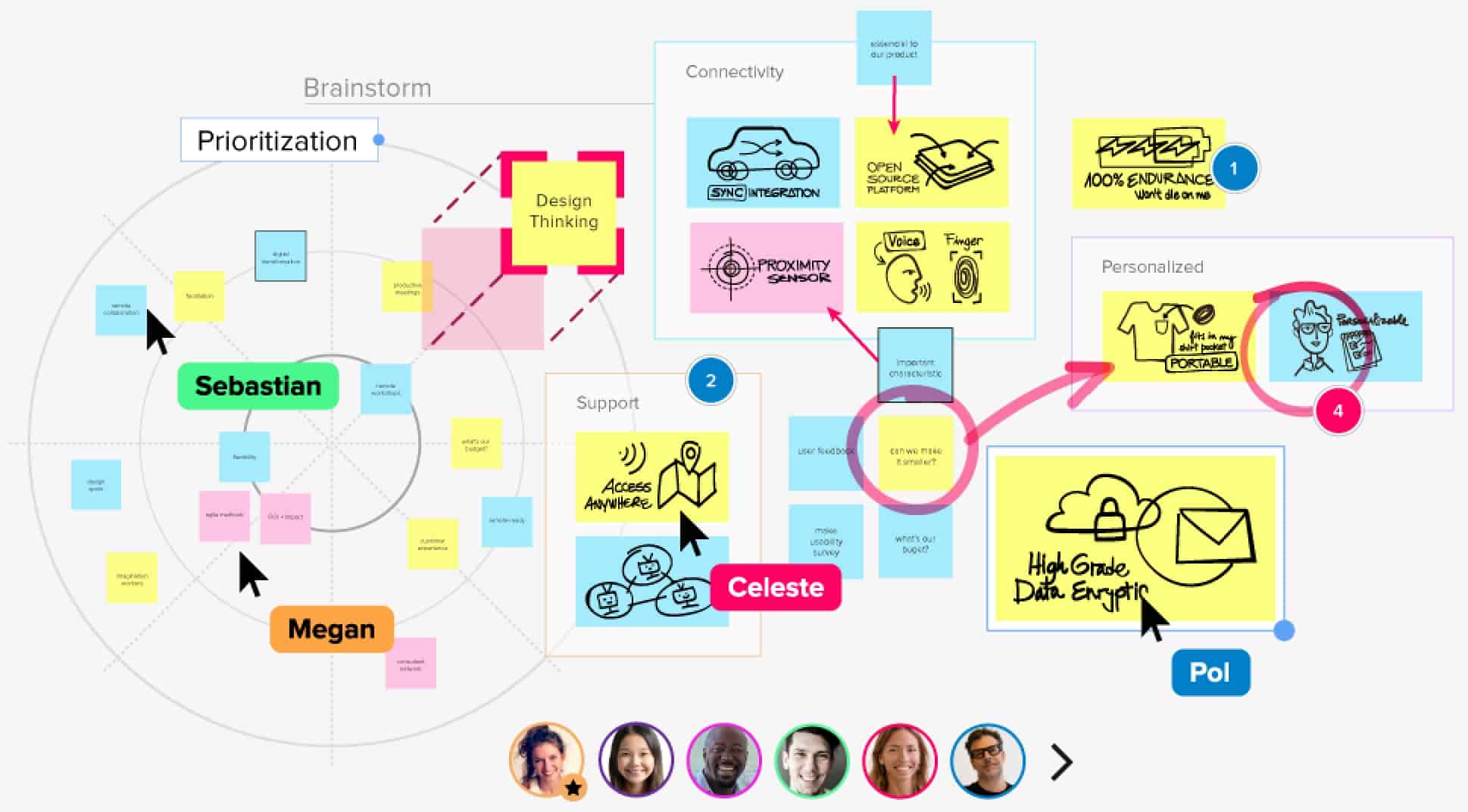
So that interactive meetings for generating ideas can be held online too, there are now very interesting tools such as Miro.com and Mural.co that can be used through the web browser. Instead of a single person giving a presentation online, several participants can work on a whiteboard on a web page at the same time. This can be used for any kind of creative exchange. From feedback rounds through classic mind maps or a business model canvas to customer journey maps or design sprints, there are countless templates with which creative processes can be run in a structured and goal-oriented way. Everyone logged into the whiteboard is visible with their mouse pointer, so it feels as if all the meeting participants were in the same room at a physical whiteboard. The facilitator can also lock the visible section of the whiteboard for all participants, so that the group does not get sidetracked and the focus stays on the current topic. To assess the ideas collected, the tools also offer a voting function. That way ideas can be condensed during the remote session itself — real added value for bringing collaboration to life despite the physical distance. In the video below, a creative agency introduces Miro as an online collaboration tool.
4. Behaviour

A few rules of conduct are needed to keep online meetings or conference calls from turning into an ordeal. Anyone who logs in should give their name instead of just a ‘hello everyone’. That way it is clear to all who has joined, even if you are not looking at the conferencing app at that moment and cannot see the speaker’s name there. In meetings with more than 3 people, I recommend that all participants apart from the facilitator mute themselves as long as they are not speaking. Even in a quiet room there are always background noises (I go into this in detail in this blog article). If you speak up in a larger group without your video camera switched on, you should give your name every time you speak during the meeting as well, so that everyone knows who is talking. From about 8 people onwards, free discussion is practically impossible, because people unwittingly talk over each other and, with the latency of the sound over the web, that can end in chaos. In large virtual meetings, the facilitator should therefore ‘hand’ the floor to the participants. People who want to say something can signal it via the built-in chat or via a dedicated function that in Microsoft Teams is called ‘raise hand’. That way everyone can contribute without chaos breaking out.
5. Facilitation

As soon as an online meeting is held with more than 4 people, I recommend appointing a facilitator or meeting leader who guides the group through the agenda and, depending on the number of participants, also actively invites people to speak. The facilitator has to be the person who is best prepared or who has a flair for leading the group through the topics. They should also be able to interrupt monologues and bring rambling discussions back to the agenda and the schedule. They can remind participants of the rules or mute people with disruptive background noise. The facilitator should be able to recognise and address the participants’ needs intuitively. Instead of minutes, it makes sense for most kinds of meeting to enter the essential points and decisions directly in the relevant system. If you want to concentrate on facilitating yourself, ask a colleague to take on the ‘minutes’ part. Tasks, timing and responsibilities in particular should be entered directly in the project management tool the company uses. If you are still using MS Project or another legacy application, take a look at the reliable and very easy-to-use asana.com or at the innovative and incredibly versatile ClickUp.com.
6. Technical guide for online meetings (separate article)

Conclusion
Be aware that online meetings bring different challenges from meetings on site. Because people in virtual conferences are connected to each other through technical tools, what is needed above all is adapted behaviour. The spatial, or rather visual, sense is also missing, and you should be aware of that and respond to it. Online tends to need more structure, but above all you should test the tools you use thoroughly and get to know them, in order to keep mishaps and waiting times to a minimum. I have tried to gather some of these challenges here and in the rather more technical article, with no claim to completeness.
What is your experience with virtual meetings? Write to me using the contact form. I wish you enjoyment and success with them.